Connection lost
Trying to reconnect…
Server didn't respond
Recovering…

Single sign-on & directory sync
On Team and Enterprise plans, your team signs in to emisar with your own identity provider — Google Workspace, Okta, Keycloak, or any compliant OIDC. On Enterprise, your directory drives the rest: provision people from the IdP, and when someone is offboarded there, their emisar access is revoked automatically — sessions ended, API keys revoked, no manual cleanup.
Two pieces, set up independently: SSO login (sign in through your IdP) and directory sync (SCIM) (provision and deprovision from the directory). You can run login on its own; directory sync builds on a configured connection. Both are configured from one page — Settings → Single sign-on in your emisar workspace; the screenshots below are that page.
Where these flows stand
emisar speaks standards-based OpenID Connect and SCIM 2.0, and the round-trip — OIDC discovery, ID-token validation, the full SCIM provision / update / deactivate / reactivate lifecycle, and group → role recompute — is verified end to end against a live standards IdP. Vendor-specific certification against hosted Okta and JumpCloud tenants is in progress; until it lands, treat the per-vendor admin-console steps below as our best read of each provider's UI, not a vendor-certified runbook. The emisar side — every step and screenshot on this page — is exactly what you'll see.
Setting up SSO login
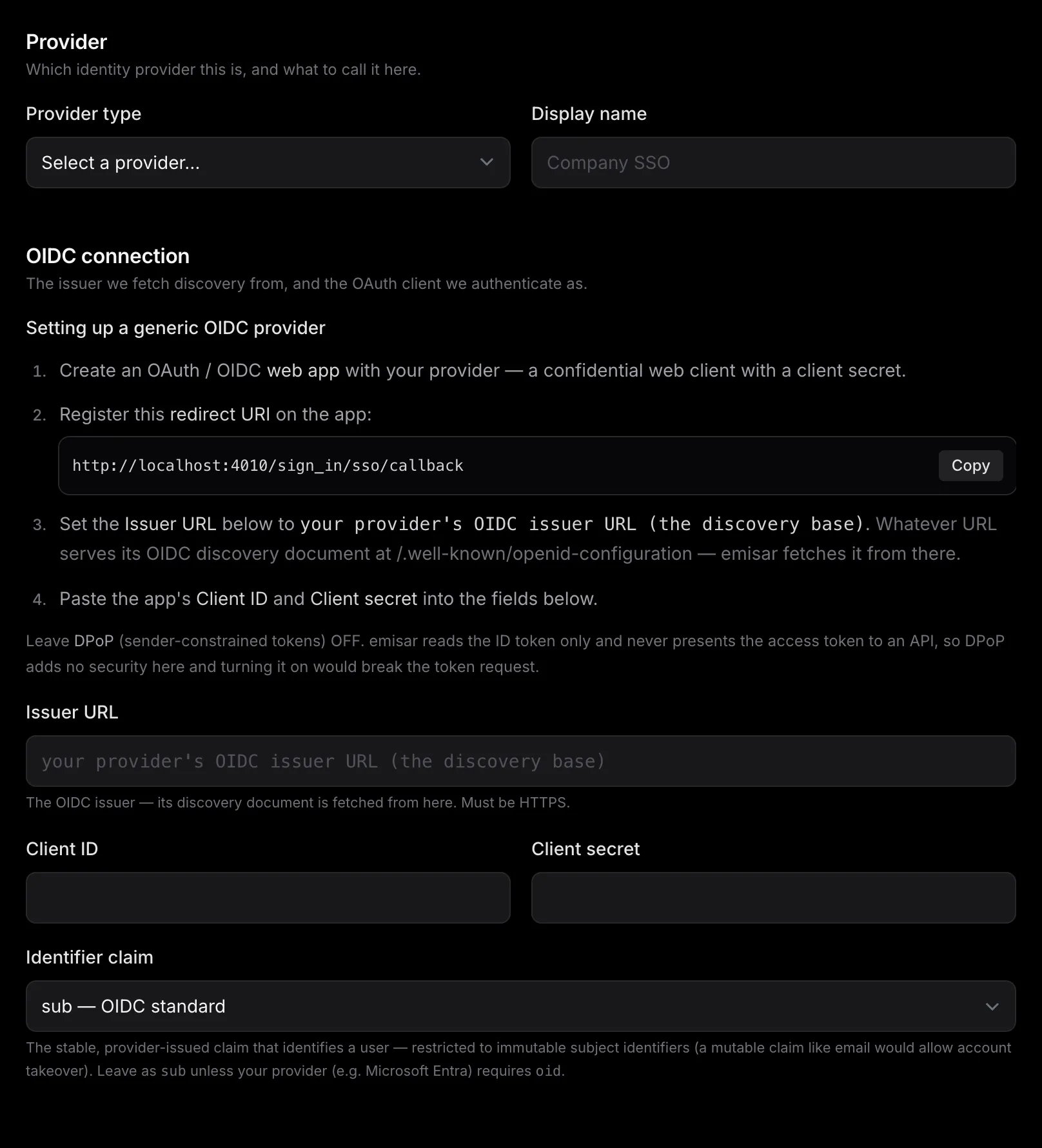
You need an emisar owner or admin. Open Settings → Single sign-on and click Add connection; the form fills the right-hand side and walks you through the provider-side app as you pick a provider type. Only available on Team & Enterprise.
-
1
Create an OAuth / OIDC app at your provider.
A confidential web application with a client secret. emisar uses standard, discovery-based OpenID Connect, so the named providers (Google Workspace, Okta, Keycloak) are presets over one flow — there's no separate integration to wait for, and Generic OpenID Connect fits anything compliant. When you pick a provider type in the form, the in-app guide names the exact admin-console path for it. Leave DPoP (sender-constrained tokens) off — emisar reads the ID token only and never calls an API with the access token, so DPoP adds nothing here and would break the token request.
-
2
Register emisar's redirect URI on that app.
The form shows the exact value, with a copy button — it's
/sign_in/sso/callbackon your emisar host. This is the fixed URI emisar uses; it's never taken from the request, so paste it verbatim into your app's allowed redirect / callback URLs. -
3
Fill in the connection and save.
Back on the emisar form, set:
- — Provider type and a Display name (what your members see — e.g. "Acme Okta").
- — Issuer URL — your provider's OIDC issuer (must be HTTPS). emisar fetches the discovery document from there, so you never paste individual endpoints. The in-app guide shows the shape for the selected provider (your Okta org URL, your Keycloak realm URL, and so on).
- — Client ID and Client secret from the app you just created. The secret is write-only — stored hashed-secret style and never rendered back; when you edit the connection later, leave it blank to keep the current one.
- — New-user provisioning — Auto-provision creates a user on first sign-in; Manual holds each first-time sign-in as a pending request an admin approves. Either way they land at the default role below.
-
—
Identifier claim
— leave as
subunless your provider documents a different stable identifier. This is what an identity is bound to (see below), and what SCIM'sexternalIdmust match for login and directory sync to converge. - — Default role for new users — the role a newly provisioned member lands at (viewer / operator / billing manager / admin). Sync never grants owner; that stays a deliberate human grant. See roles.
- — Allowed email domain (optional) — restricts sign-in to verified addresses on that domain and routes that domain's sign-ins to this connection. Leave blank to accept any address the provider asserts.
- — Click Test connection before you save. emisar runs a live OIDC discovery round-trip against the issuer and shows the authorization, token, and JWKS endpoints it found — so a wrong issuer or an unreachable provider surfaces here, not at your team's first sign-in.
- — Decide whether this provider satisfies your 2FA requirement (see below), tick Enabled, and save. The connection appears in the list, ready to sign in through.
How members sign in
On the sign-in page, members click "Continue with single sign-on", which sends them to /sign_in/sso; if you set an
allowed email domain, entering an address on it routes them straight to your provider. They
authenticate at the IdP and come back signed in.
Identities are matched by the IdP's subject, never by email
emisar binds an SSO login to the provider plus the IdP's stable subject identifier (the
sub
claim, or whichever identifier claim
your provider uses) — never by email address.
Email-matching an SSO login onto an existing account is a known account-takeover vector, so
we don't do it. The practical consequence: a just-in-time provisioned SSO user is a
distinct principal, not a merge into a pre-existing account that happens to share
an email. If an SSO email collides with an existing user, sign-in is refused rather than
silently linked — an admin links the identity deliberately.
First login provisions the user at the connection's default role (with the directory as the email authority).
SSO sessions and your MFA requirement
Each connection has a per-provider toggle — "sign-in through this provider satisfies the account's 2FA requirement." When it's on, an SSO session satisfies an account that requires MFA without a second emisar TOTP prompt — your IdP enforces the MFA. Turn it off if you'd rather emisar still challenge. Magic-link sign-in is unaffected and is challenged for 2FA as usual.
Directory sync (SCIM 2.0)
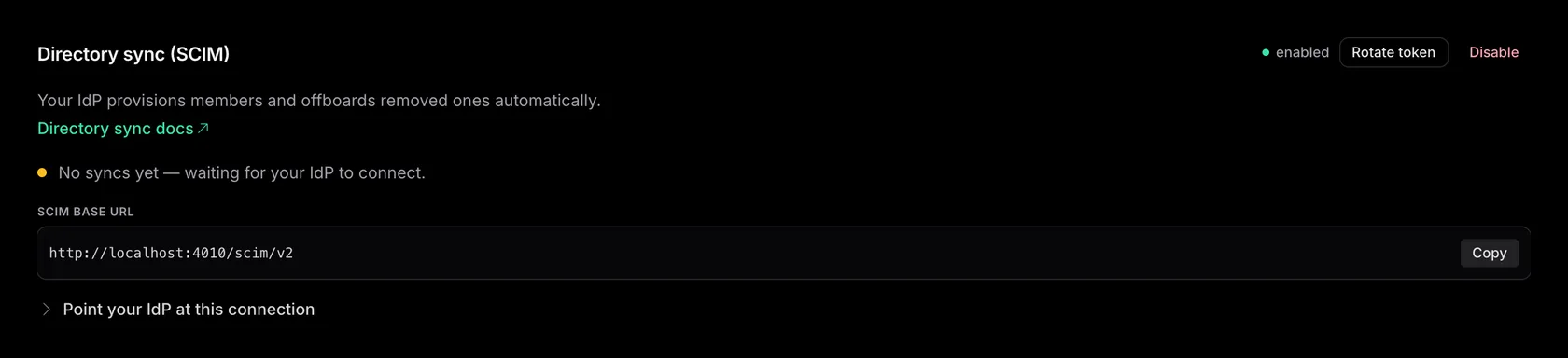
On a configured connection, enable directory sync to let your IdP push the user lifecycle to emisar over SCIM 2.0 — the standard Okta, Entra, and JumpCloud all speak as a provisioning client. The directory-sync panel lives right under each connection on the same Single sign-on page. Only available on Enterprise.
-
1
Click Enable directory sync on the connection.
emisar shows you two things to wire into your provider's SCIM connector — both visible in the panel above:
-
—
the SCIM base URL
—
/scim/v2on your emisar host (copy button beside it), and - — a bearer token, shown once when you enable or rotate it. Like every emisar secret it's write-only after that — copy it then. Didn't catch it? Use Rotate token to mint a fresh one (the old one stops working).
-
—
the SCIM base URL
—
-
2
Point your IdP's SCIM connector at that base URL and bearer.
In your provider, set the SCIM endpoint to the base URL and paste the token as the API token — emisar accepts it in the
Authorizationheader. Enable Create / Update / Deactivate. The connection's "Point your IdP at this connection" guide names the per-provider specifics — for Okta, SCIM lives in a separate app (the OIDC login app can't do SCIM); for JumpCloud it's a Custom SCIM config on the same app. -
3
Match the SCIM externalId to the OIDC subject.
Configure your IdP so the SCIM
externalIdis the same stable identifier as the connection's identifier claim (the OIDCsub). Then a member's SSO login and their synced directory record resolve to one emisar identity — no email-matching anywhere. Okta and JumpCloud default both to the directory user id, so this usually needs no change; the brand-bordered note further down covers it in full.
Once it's wired, here's what the sync does:
- — Provisioning creates the user and their membership at the connection's default role — so access is in place before their first login.
- — Deprovisioning — when the IdP marks a user inactive or removes them — suspends the member: their sessions are killed and their API keys revoked immediately, so an offboard in your directory revokes emisar access automatically. It does not delete the user — the audit trail is preserved. Reactivation in the directory restores access.
Using Google Workspace?
Google Workspace is a first-class OIDC login
provider here, but it has no outbound SCIM — it won't push the user lifecycle to
emisar. On its own you get just-in-time provisioning on first login and no automatic deprovisioning. To close that gap,
route Google through your IdP (Okta, Entra, or JumpCloud) and connect that
to emisar's SCIM — an offboard in Google then reaches emisar as the standard
active: false
signal and access is revoked automatically, exactly as above. Most orgs already
federate Google through an IdP, so there's usually nothing new to stand up. (Native
Google directory sync without an IdP is on our roadmap — talk to us if you need it.)
Setup note: match the SCIM externalId to the OIDC subject
Configure your IdP so the SCIM
externalId
it sends is the same stable identifier as the OIDC
sub
(the connection's identifier claim). Then a user's SSO login and their synced directory
record resolve to the same emisar identity — no email-matching anywhere. If the two sides
can't be configured to share an identifier, that connection can't be reconciled this way.
Group → role mapping
With directory sync on, map an IdP group (by its SCIM externalId) to an emisar role
— viewer, operator, billing manager,
or admin. A member in several mapped groups gets the
highest
role mapped to any of them.
Owner is never assignable through
sync
— it stays a deliberate human assignment.
Security notes
- — Identities are bound by issuer + subject, not email — so an SSO login can never claim a pre-existing account on a matching address.
- — The SCIM bearer token is an admin-grade credential — it can provision and deprovision across the account. Treat it like a password, and rotate it from the connection's panel if it's ever exposed (your IdP loses access until you paste the new one).
- — Deprovisioning suspends, never deletes — to keep the audit log of what the member did intact.
- — Every SSO and directory-sync action lands in the audit log with its authentication method, so you can answer "who did this, signed in how" — and see that the directory, not a person, suspended an offboarded member.